
Trade
Tables on the chart
Put a table on the chart, calculate in it like a sheet, and use live prices as variables.
The Table tool puts a small sheet on your chart. Use it for a trade plan, a list of levels, or a quick calculation that follows the live price. It works like a simple spreadsheet.
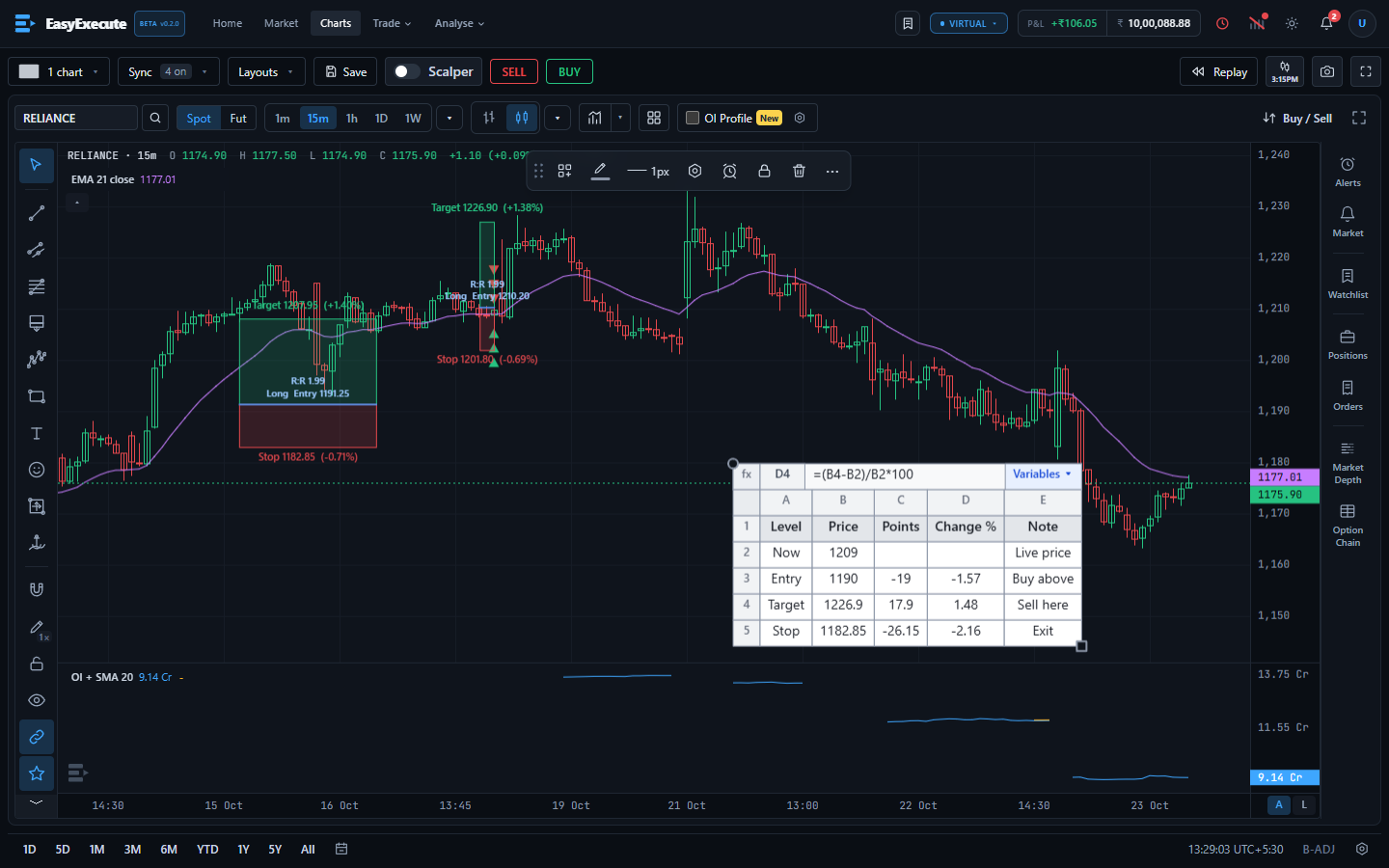
Add a table
- Open the Text and notes menu in the drawing tools and choose Table, then click on the chart. You get a 5 by 5 table with a heading row. A table can have up to 25 rows and 25 columns, and a chart can hold up to 3 tables.
- Double-click a cell to type in it. Enter saves, Tab moves to the next cell, Shift+Tab to the previous one, Esc cancels.
- Drag the small handle at the bottom-right corner to make the whole table bigger or smaller.
- Open the table settings to add or remove rows and columns, change colours, and switch the heading row, the cell names and the formula bar on or off.
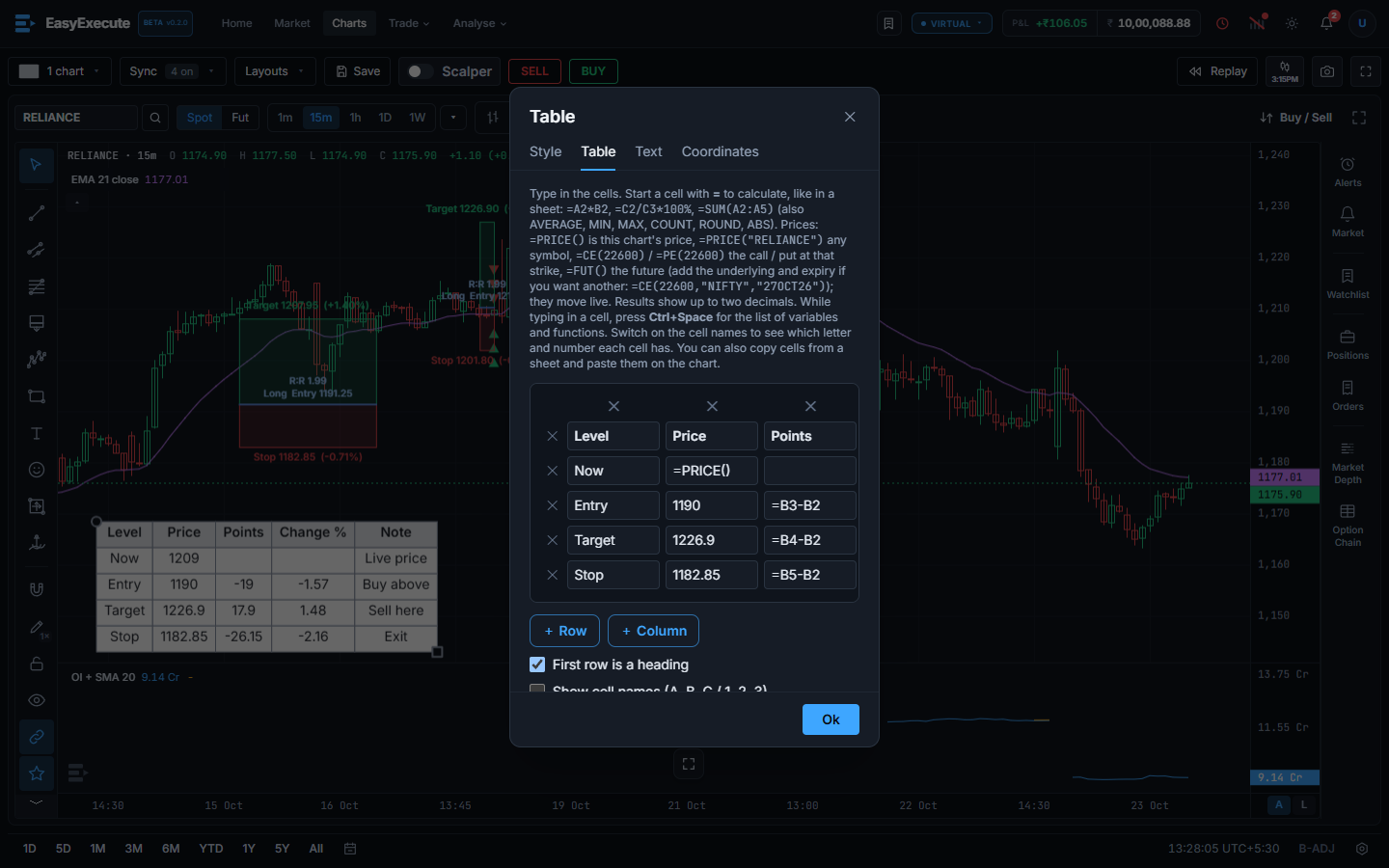
Note. You can also copy cells from Excel, Google Sheets or a web page and press Ctrl+V over the chart. They land on the chart as a table, with text, colours and bold kept.
Calculate in a cell
Start a cell with = to make it a formula. Results show up to two decimals.
- Plus, minus, times, divide and percent: =A2*18% or =B2/3.
- Cells by name: column letter and row number, like A2. Switch on cell names to see the letters and numbers around the table.
- Functions: SUM, AVERAGE, MIN, MAX and more, on a range like =SUM(A2:A4).
- A formula can use another formula. If something is wrong, the cell shows a short message such as #DIV/0! or #REF! instead of a wrong number.
Price variables
Price variables bring live prices into a formula. They update as the price moves. Outside market hours they use the last traded price.
- PRICE() is the price of the chart you are on.
- PRICE("TCS") is the price of any stock or index, by its name.
- CE(22600) and PE(22600) are the premium of that strike of the call or put. By default they use the chart's own underlying and the nearest expiry.
- FUT() is the future of the chart's underlying.
- Use them in sums, for example =CE(22600)+PE(22600) for a straddle premium, or =(PRICE()-A2)/A2 for the move from a level in A2.
- Until a price is known, the cell shows #N/A for a moment.
Formula bar and the Variables list
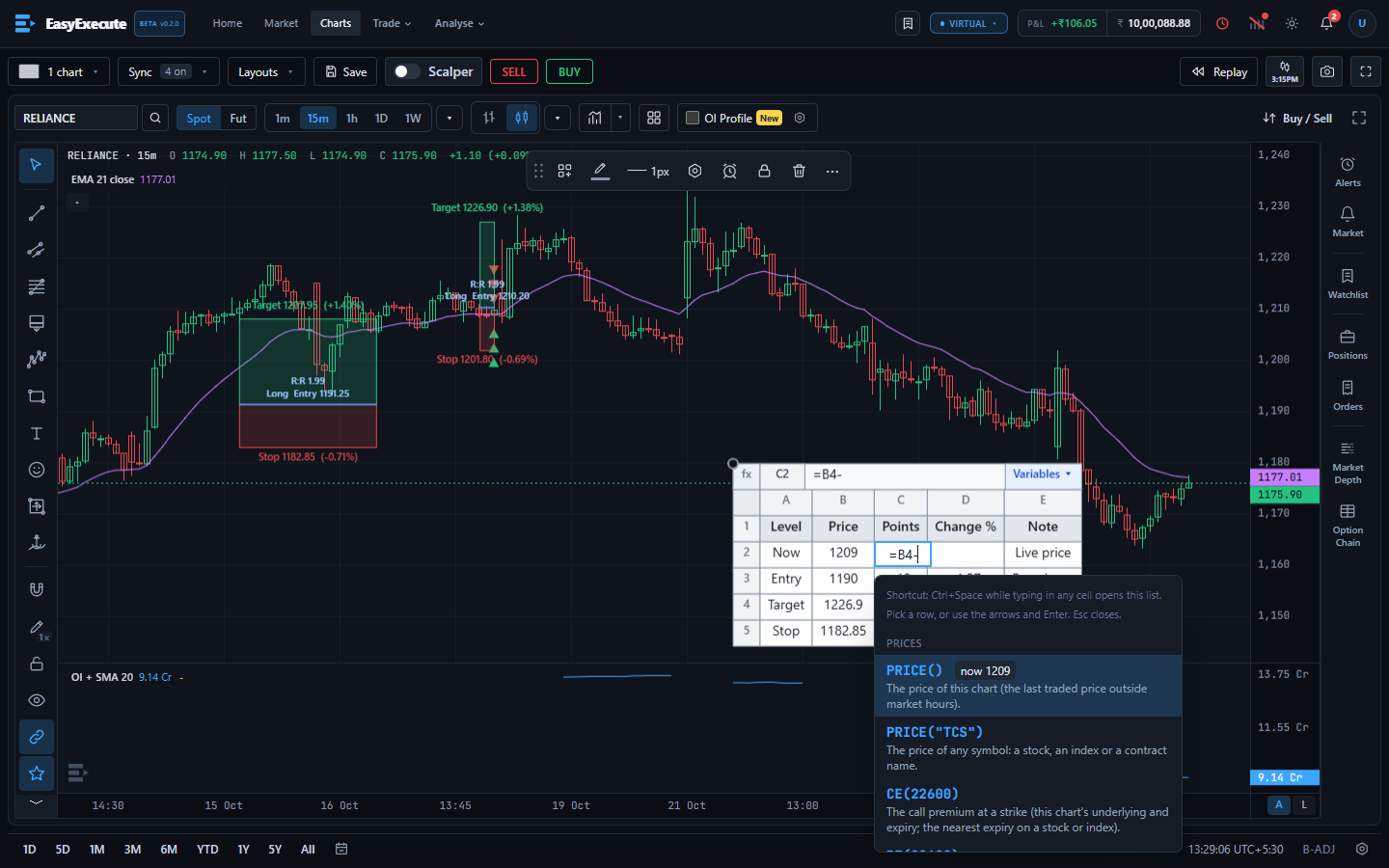
- Switch on the formula bar in the table settings. It shows fx, the name of the selected cell and the formula you typed (not its answer).
- Click the text part of the bar to edit the selected cell there. The bar and the cell show the same text as you type.
- Click Variables at the right end of the bar to open a list of every variable and function, with a short explanation and the live price for PRICE(). Pick one and it is added at your cursor.
- Shortcut: press Ctrl+Space while typing in any cell to open the same list under the box. Use the arrows and Enter to pick, or click a row. Esc closes it.
- A cell that is not a formula yet becomes one when you add a variable, so adding PRICE() gives =PRICE().
Note. A table is a drawing: you can lock it, hide it, copy it, and right-click it for the same menu as other drawings. Your drawings are saved with the symbol.